Try the Services
Introduction
The easiest way to try Mosaic is a free trial. It gives you your own Mosaic environment, where the Video, Encoding, and DRM services are already enabled, so you can encode videos and protect them with DRM right away.
This guide shows how to extend your trial environment with the customizable services of the Mosaic Media Template. You deploy pre-built versions of them with the Hosting Service, so you can explore their workflows in the Management System and their APIs without writing or building any code. The Hosting Service also provisions the infrastructure they need, such as databases, DNS records, and message brokers.
What the Services Add
| Service | What it adds to your environment |
|---|---|
| Media Service | Manage the metadata of your movies and TV shows and orchestrate their ingest. |
| Catalog Service | Deliver your published catalog, such as movies, TV shows, seasons and genres, to your frontend apps. |
| Entitlement Service | Control which content each subscriber can access and what rules apply for playback. |
| Channel Service | Curate channels and playlists. |
| VOD-to-Live Service | An example that publishes the channels of the Channel Service as live streams. |
The deployment uses the pre-built container image from the latest release of the Mosaic Media Template repository on GitHub.
The deployed services are an evaluation setup. They scale down automatically 30 days after deployment. A link to prolong the evaluation appears on the service's deployment station 7 days before the scale-down.
Deploying a Customizable Service
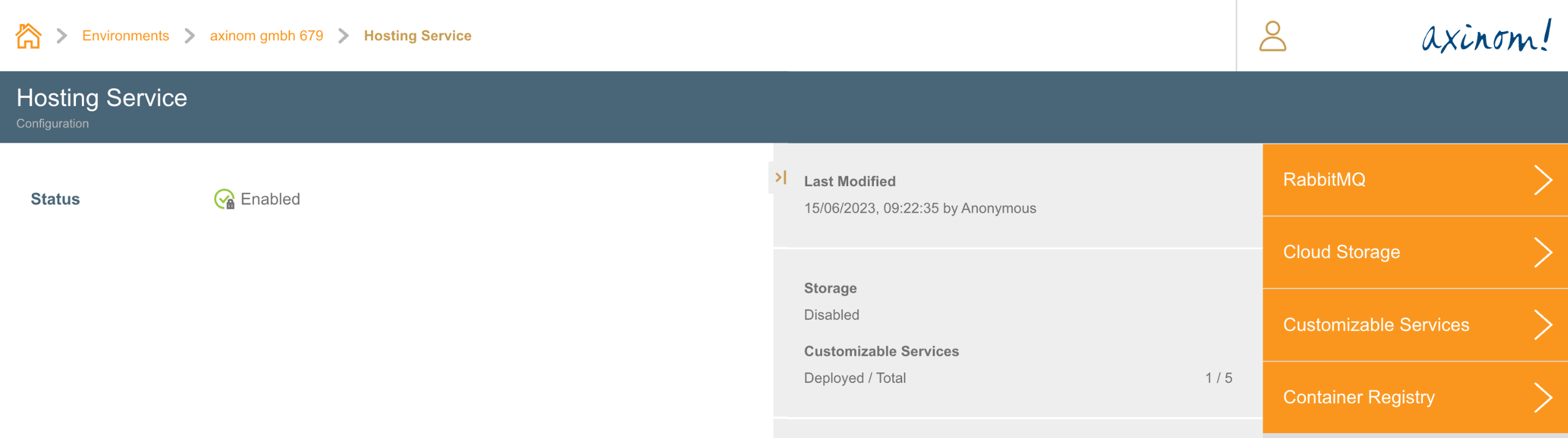
The Customizable Services station in Hosting Service lists down the deployable services for an environment.
Hosting Service Configuration
Customizable Services
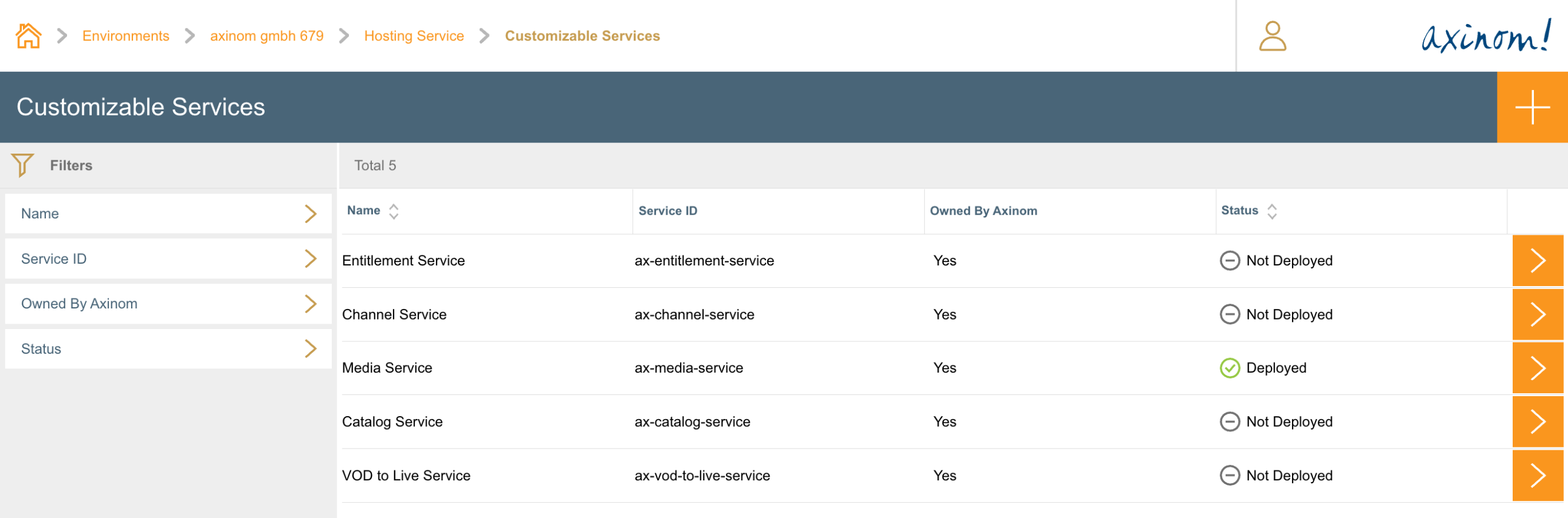
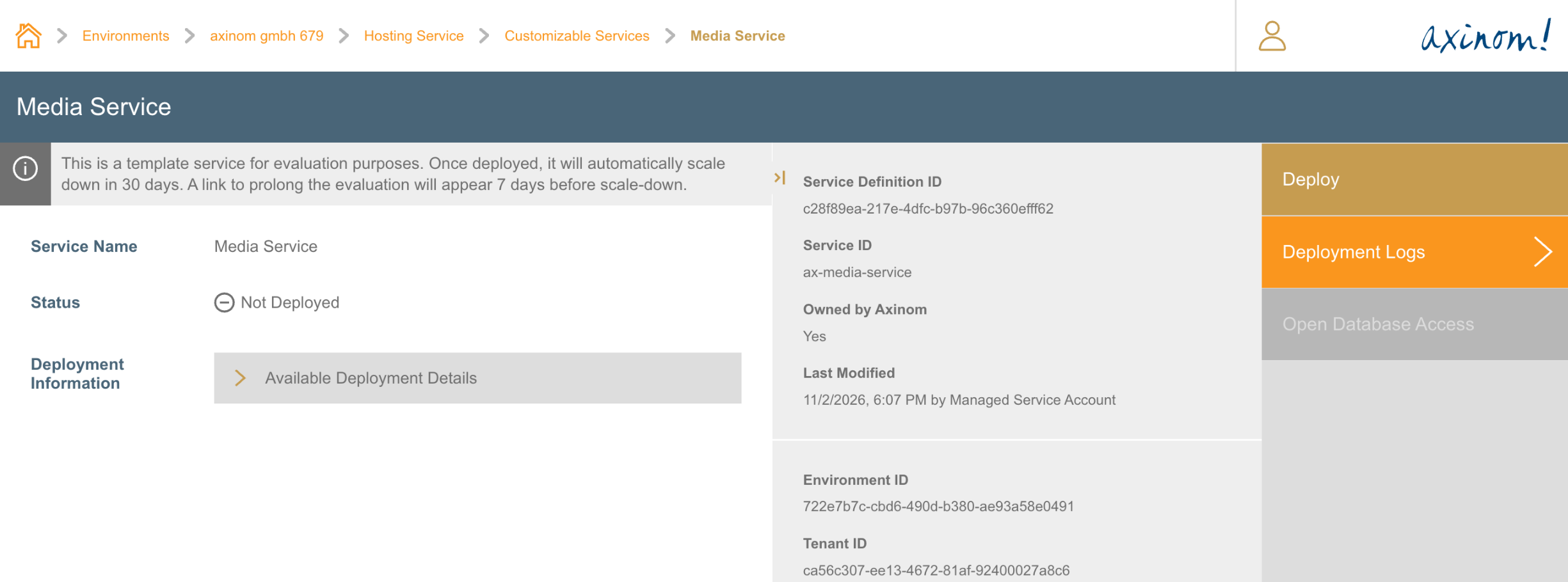
Select a service from the list to open its deployment station. Select the Deploy action and confirm it to start the deployment.
Media Service before deployment
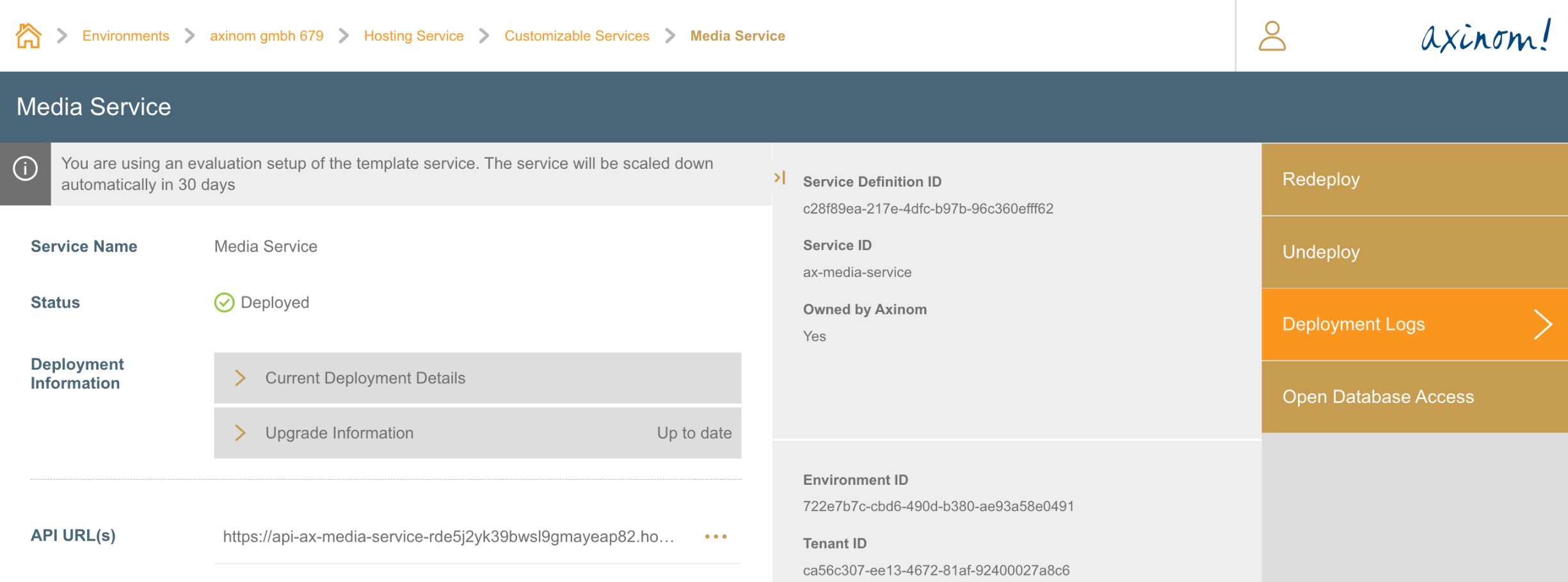
After a successful deployment, the status changes to Deployed, and the API URL(s) field shows the URL of the service API.
If there are any workflows associated with the service, these will be published to the Microfrontend Service as a part of the deployment as well.
If any errors occur while deploying the service, the status will be shown as Deployment Error and more information can be found in Deployment Logs.
Media Service after successful deployment
Updating a Service
After a service has been deployed, the Upgrade Information field on its deployment station shows whether a newer version is available (otherwise it shows Up to date). To update the service to the latest available version, use the Redeploy action.
Undeploying a Service
After a service is deployed, if required, it can be un-deployed using the Undeploy action. It will remove all provisioned infrastructure including databases. This is a destructive operation which will delete all data for the service.
Deployment station with undeploy action
Deployment Logs
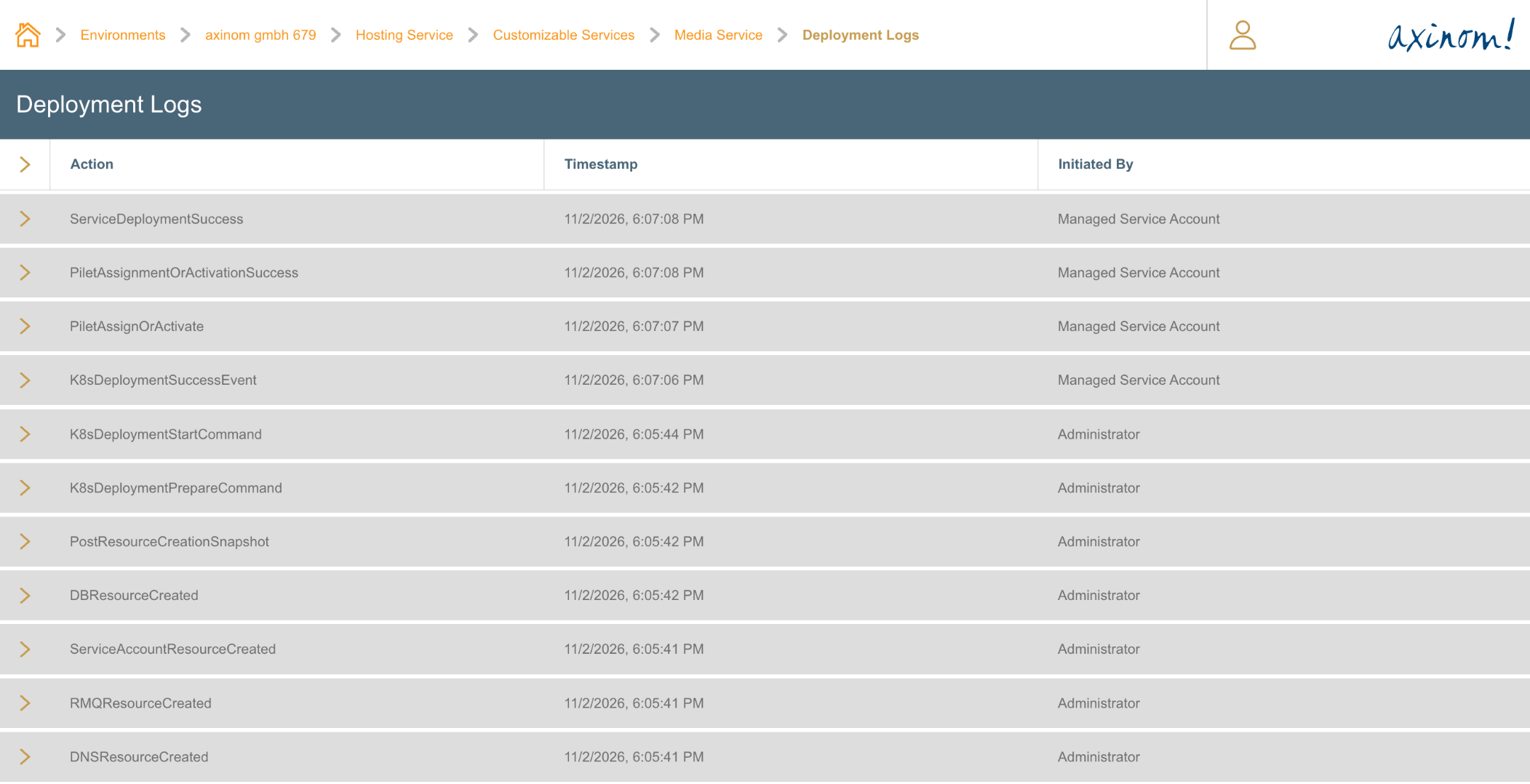
All logs related to the deployment and undeployment can be found in the Deployment Logs station.
Media Service Deployment Logs