Encode a video with DRM protection
This article is a part of the DRM Quick Start guide.
DRM protection is not a separate step. It happens during encoding, and it is switched on by the processing profile you choose.
Pick a profile with DRM protection enabled and the video comes out protected. Everything else about the encoding job stays the same.
Start a new video
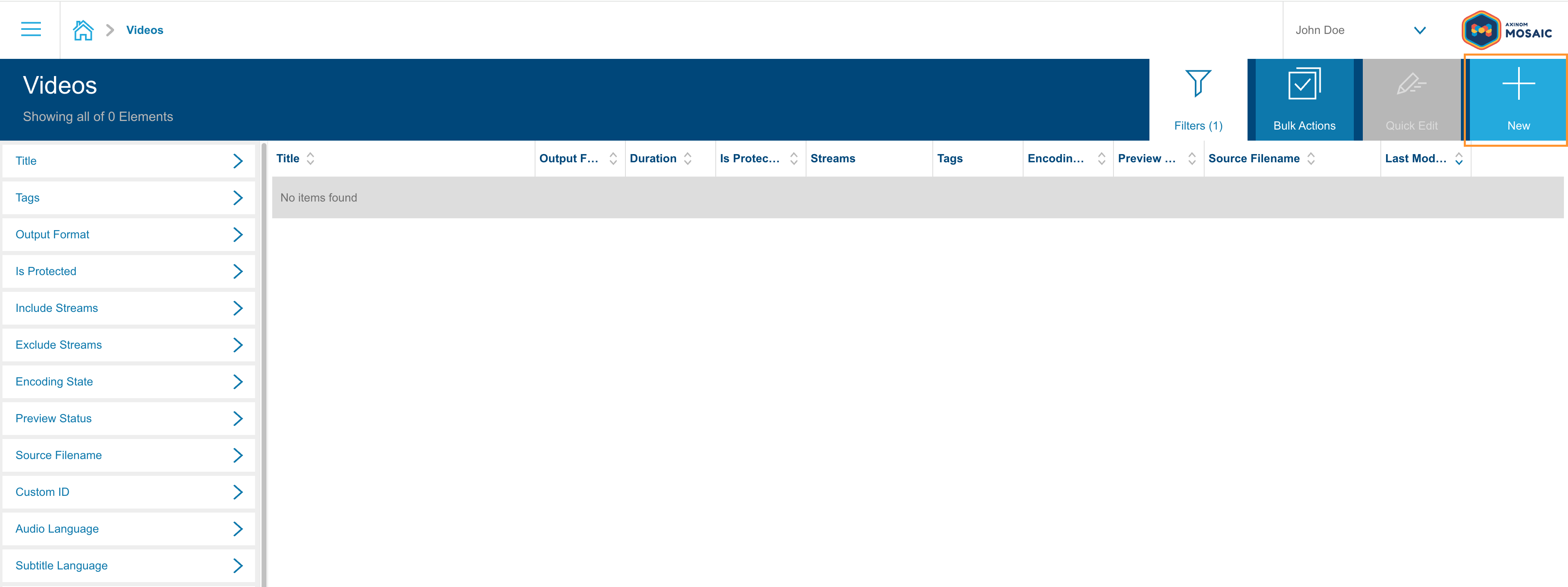
In the Management System, go to Videos and click New.
Select the source video
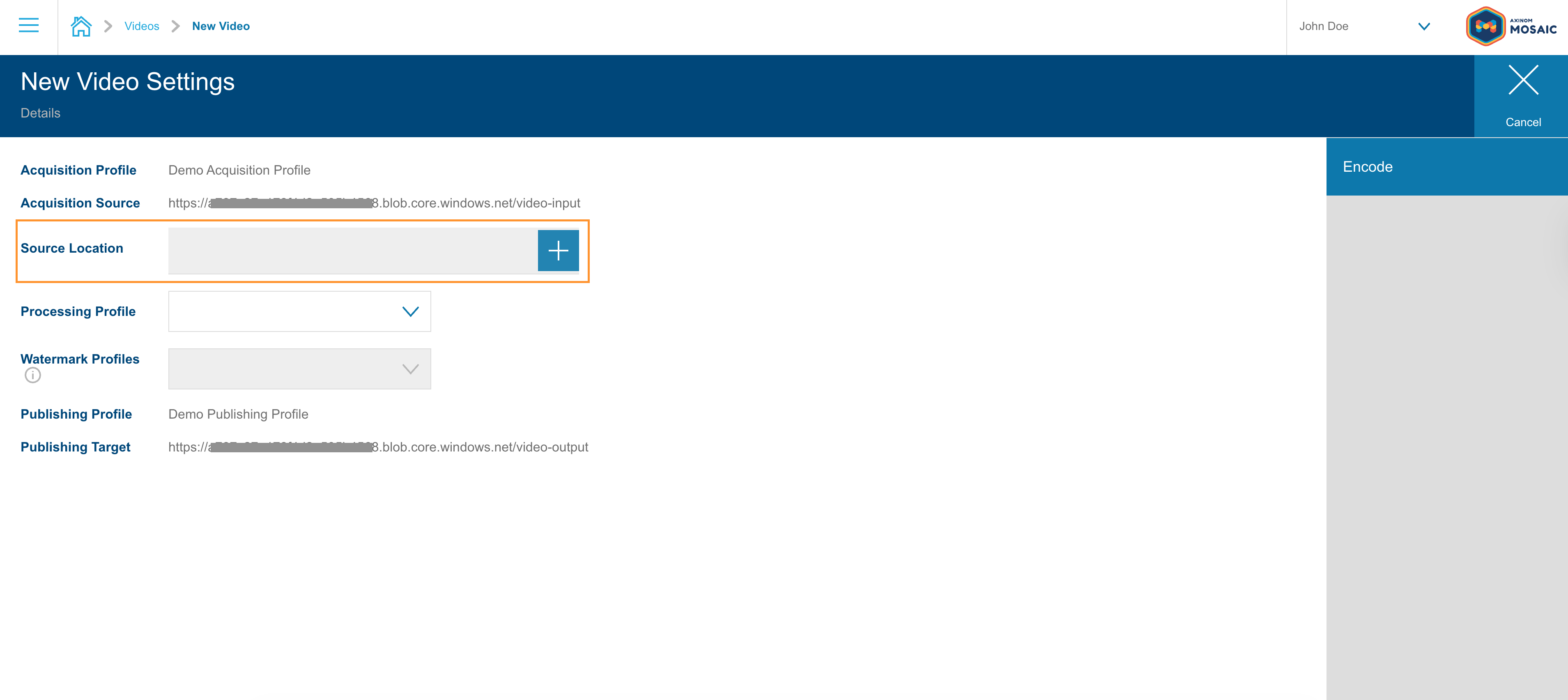
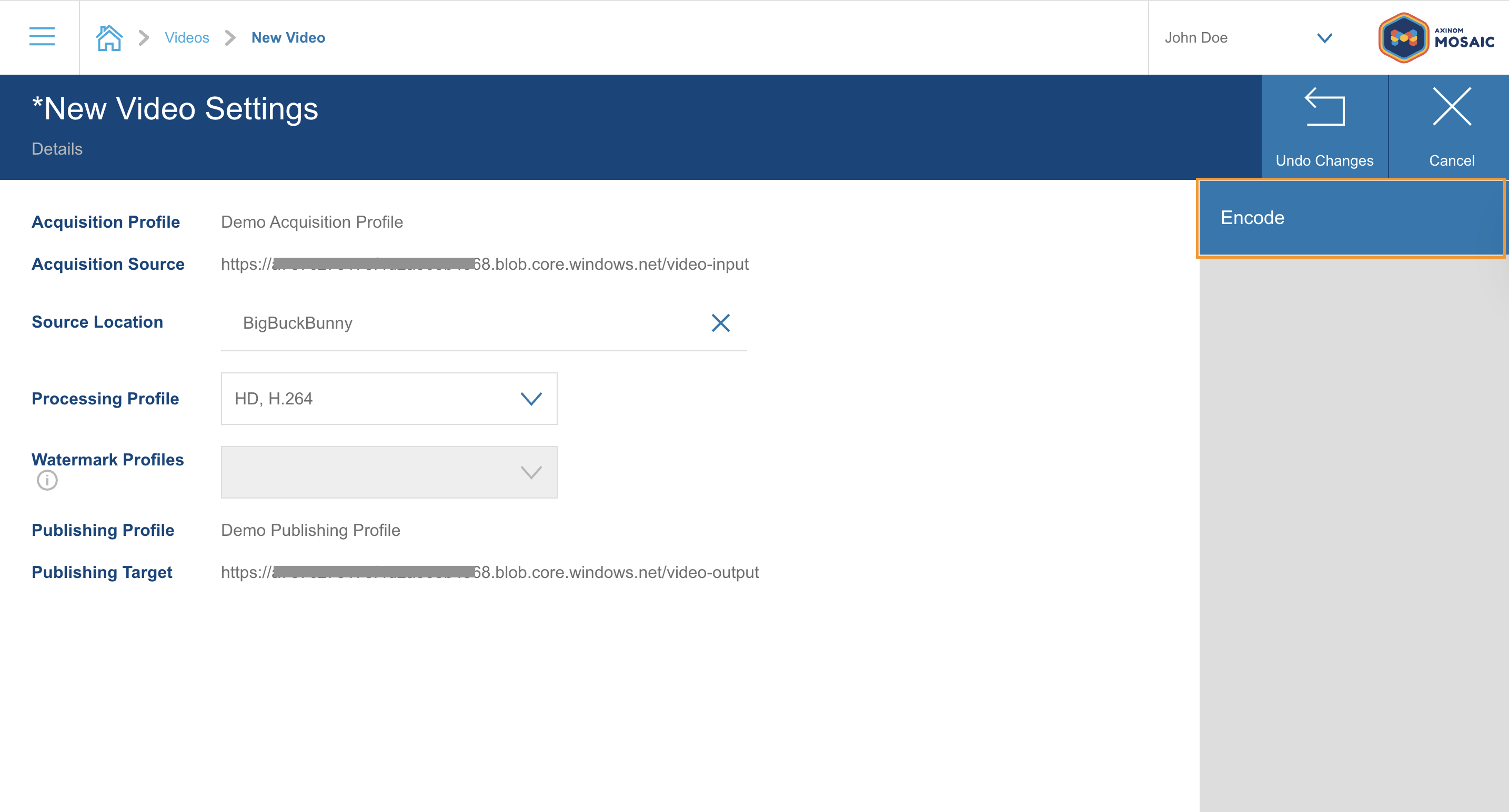
Next to Source Location, click the + icon. Select one of the sample folders that were pre-provisioned for your environment, then click Select Active Path to confirm.
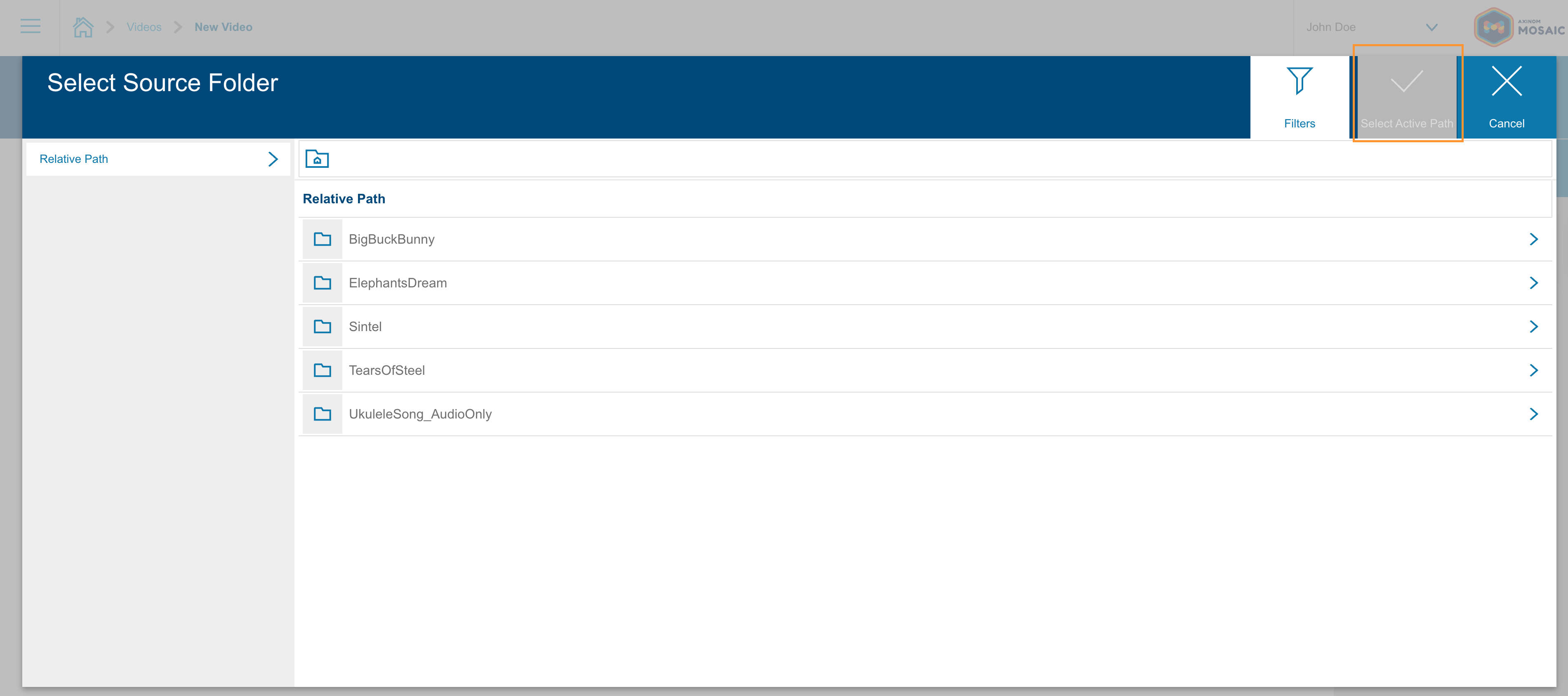
The sample folders contain short test videos, provided so that you can validate your setup without uploading your own content. A short video also keeps this first encoding job quick.
Choose a processing profile with DRM
This is the step that makes the difference.
From the Processing Profile dropdown, choose a pre-configured profile that has DRM protection enabled.
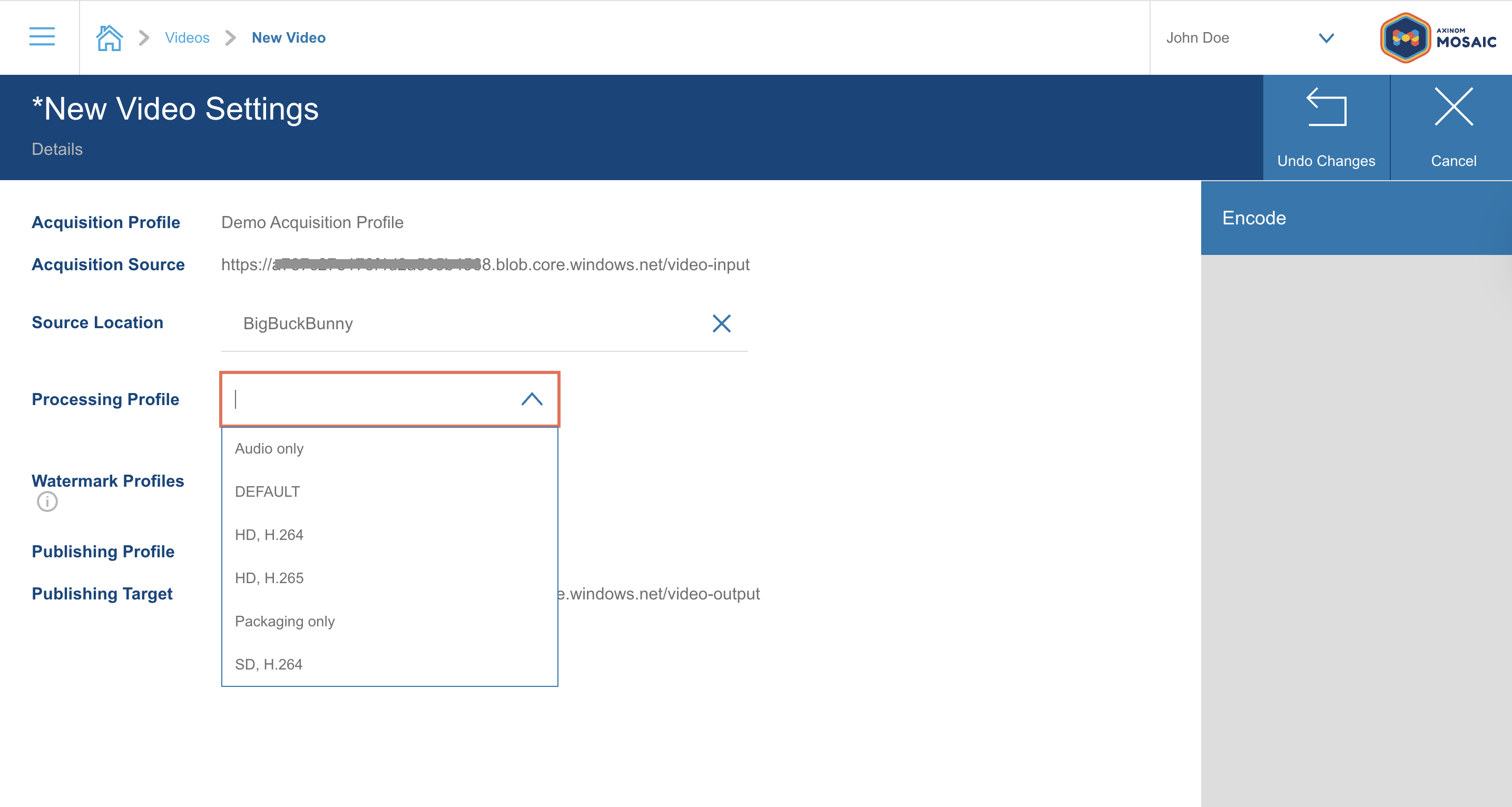
A processing profile defines how your video is encoded: output formats, bitrates, resolutions, and whether the result is DRM-protected. Your environment comes with several pre-configured profiles, and the ones provisioned with a trial all have DRM protection enabled.
The DRM setting of a profile has three possible values:
| Setting | What it does |
|---|---|
| None | The video is encoded without protection. |
| Single Key | One content key protects the whole video. This is the usual choice, and the right one to start with. |
| Multiple Keys | Separate content keys protect different tracks or quality levels, for example to apply stricter rules to UHD. |
To see which profiles have DRM enabled, go to Processing under Video Encoding Management and check the DRM Protection setting of each profile.
You can also create your own processing profile with Single Key or Multiple Keys DRM protection enabled, and use it instead of a pre-configured one. See Set up Encoding Profiles for what the profile settings mean.
Encode
Click Encode to start the job.
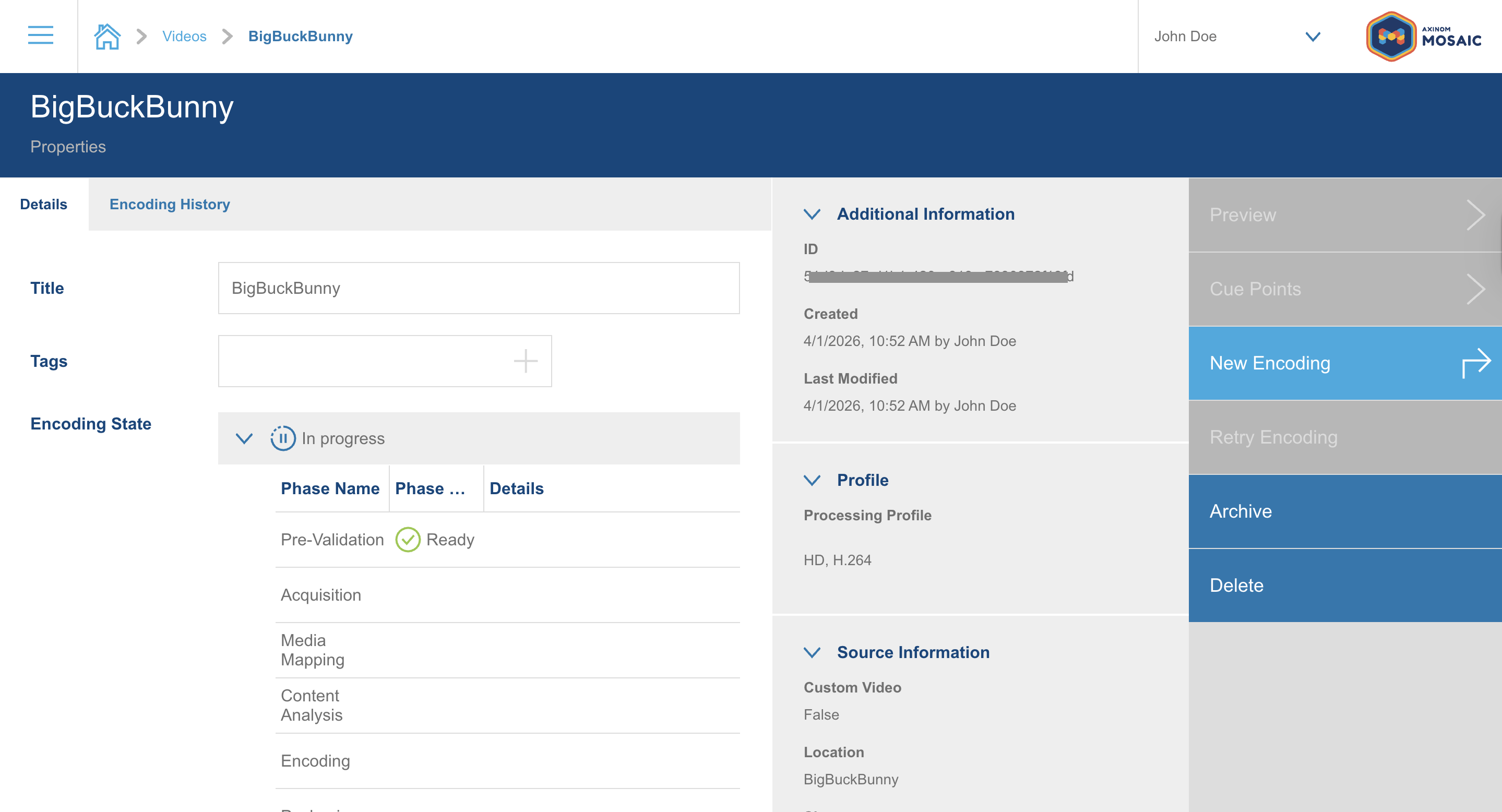
Encoding time depends on the length of the source video. You can follow the progress in the interface, and the status updates when the job completes.
What happened behind the scenes
While the job ran, Axinom Encoding requested an encryption key from the Axinom DRM Key Service and used it to encrypt the video during packaging.
The key itself is not stored anywhere. What is stored with the video is its key ID, a reference from which the License Service can reconstruct the key when a player asks for a license. This is the key seed model, and it is why playback works without you handling any keys yourself.
Next steps
See also
- Encoding Quick Start - the same flow without DRM
- Set up Encoding Profiles
- Encoding - DRM Protection Phase - how Axinom Encoding applies DRM
- Key Service