Quick Start
This guide helps you to make your first steps with Axinom Encoding. It covers the main scenarios you typically want to run around video encoding and protection.
Pre-requisites
You need an Axinom Portal account to get started. If you don't have one yet, go to https://portal.axinom.com/ and start a free trial.
Start Encoding
You can follow the following steps to test encoding flow.
-
Open your Mosaic Management System (You can find the link to your Management System from "Administration" section in the Axinom Portal.)
-
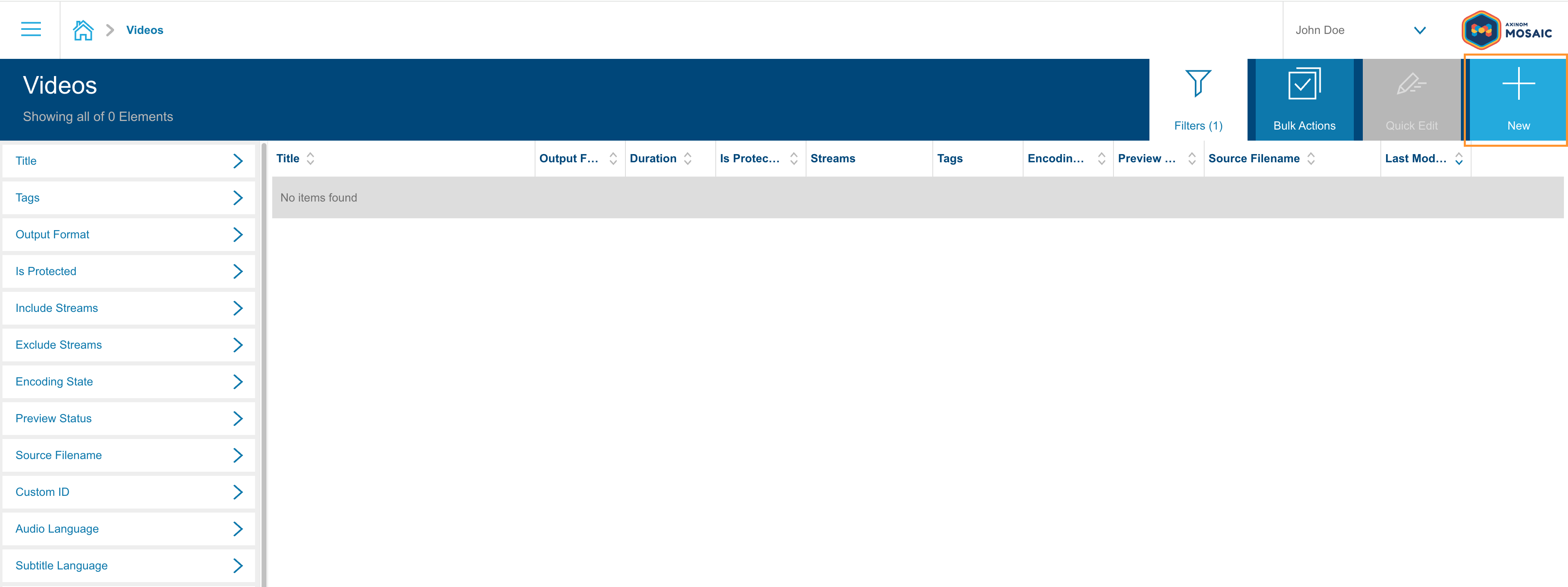
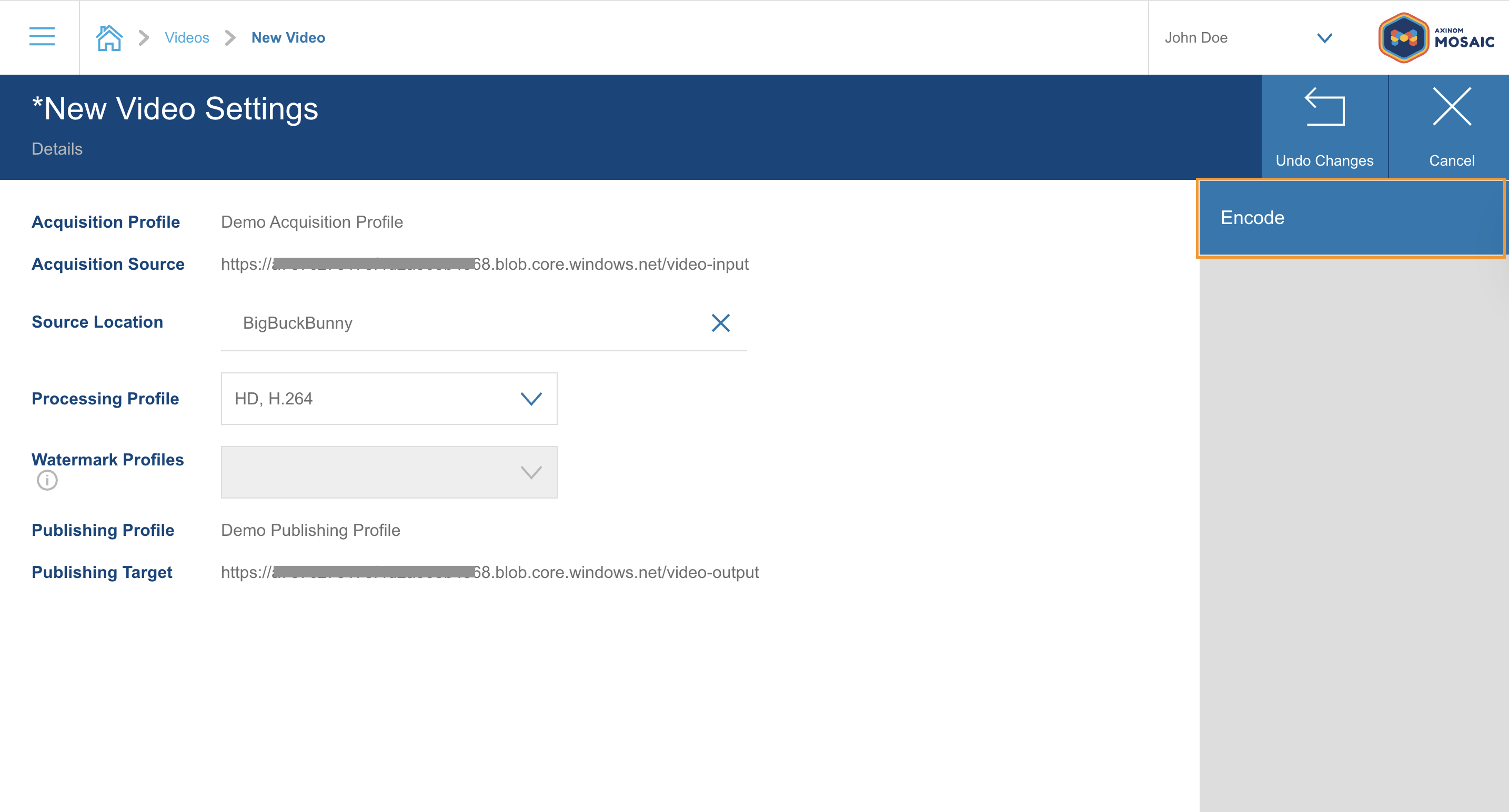
Navigate to Videos and click New.
-
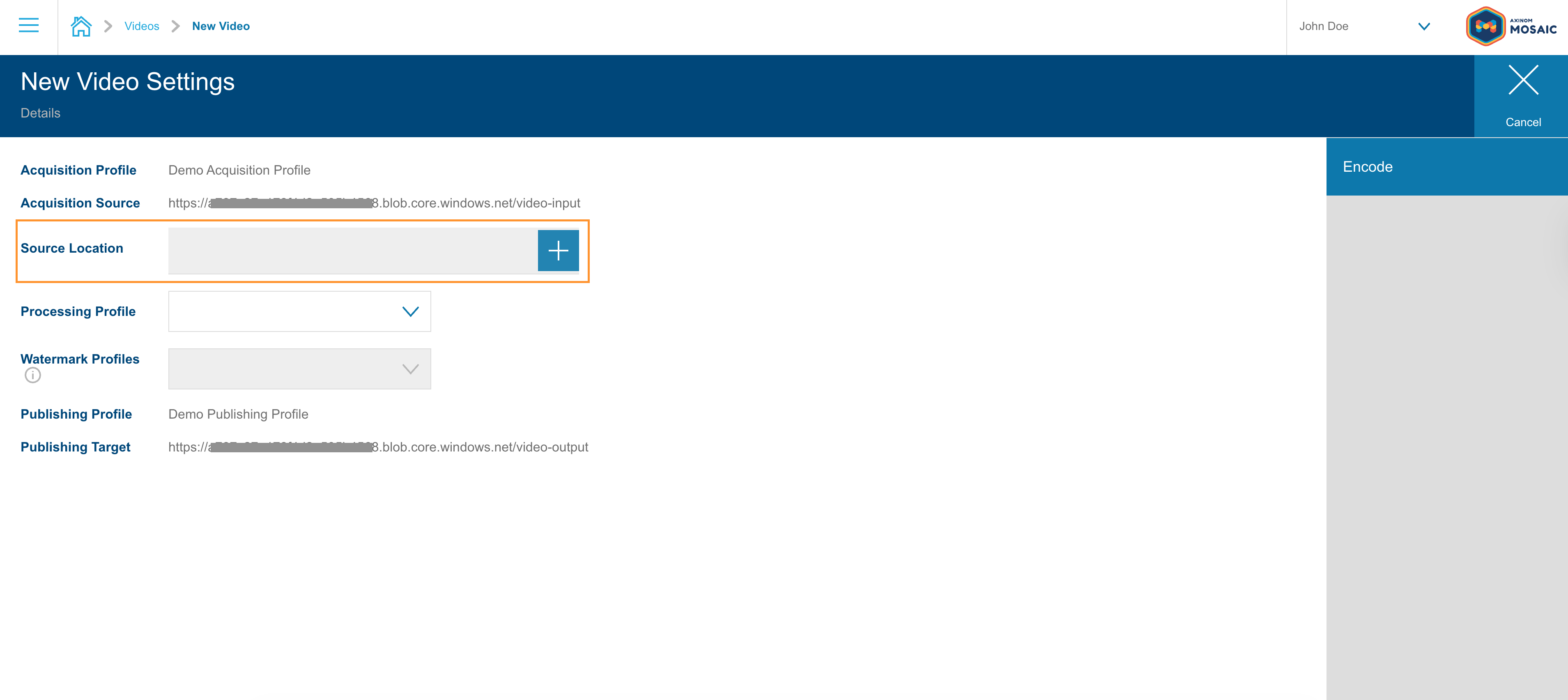
To select a source file, click the "+" icon, next to Source Location. Select the sample video folder that has been pre-provisioned for you. Click Select Active Path to confirm your selection.
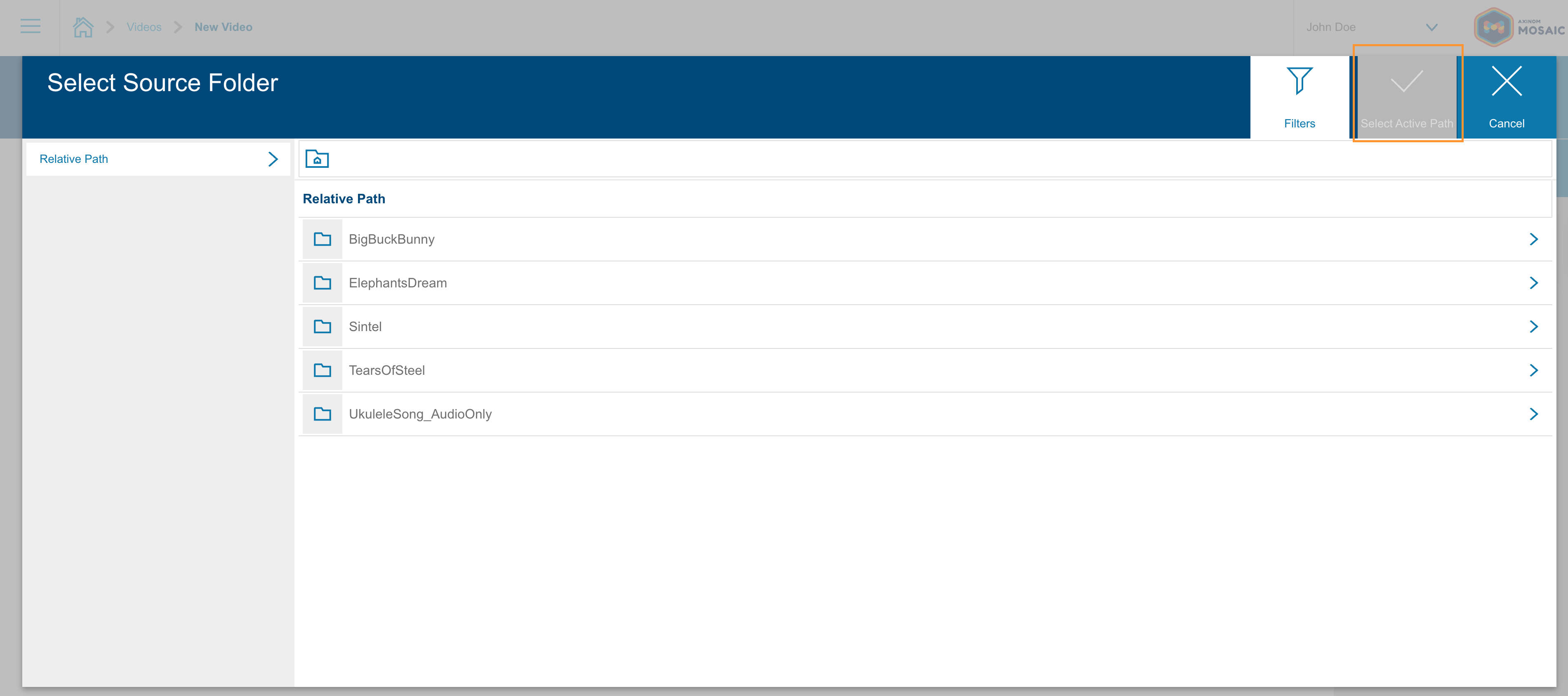
The sample folders contains a short test videos specifically provided so you can validate your encoding setup without needing to upload your own content.
-
From the Processing Profile dropdown, choose a pre-configured sample profile.
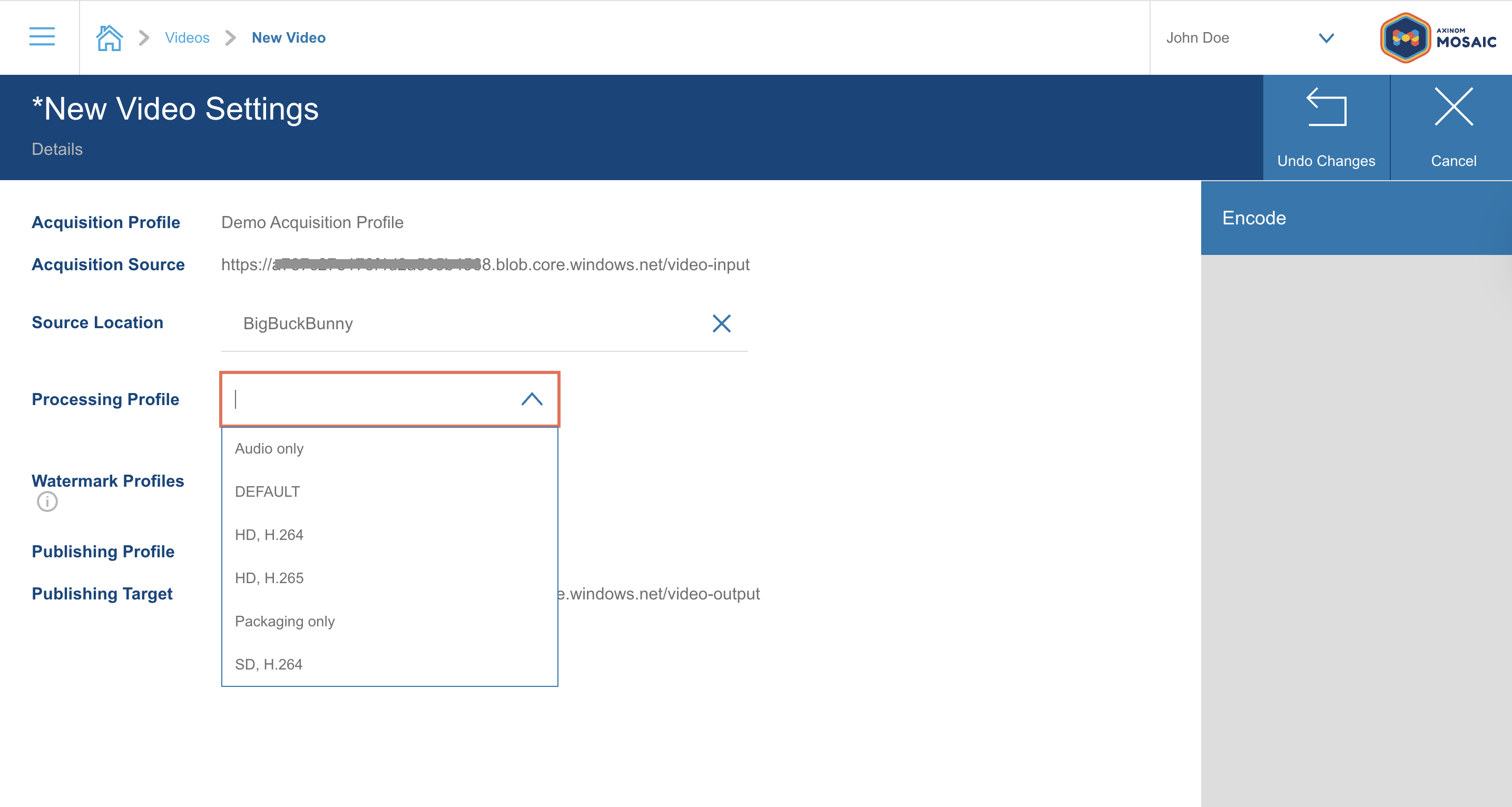
Processing profiles define how your video is encoded — output formats, bitrates, resolutions, and more. For this quick start, sample profiles are already optimized for a smooth first run. You can go to "Processing" under "Video Encoding Management" to find pre-configured processing profiles.
-
Click Encode to start the encoding.
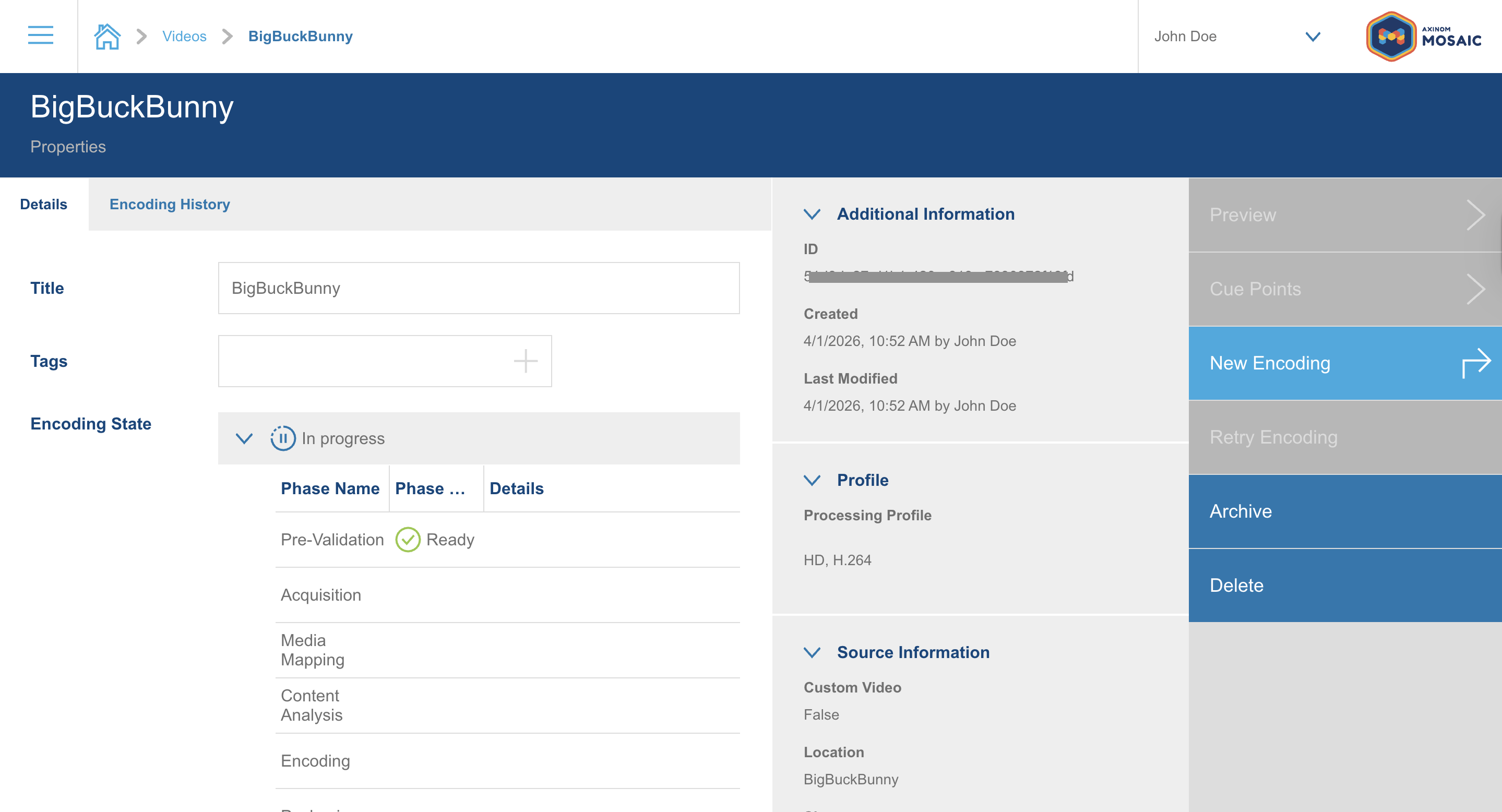
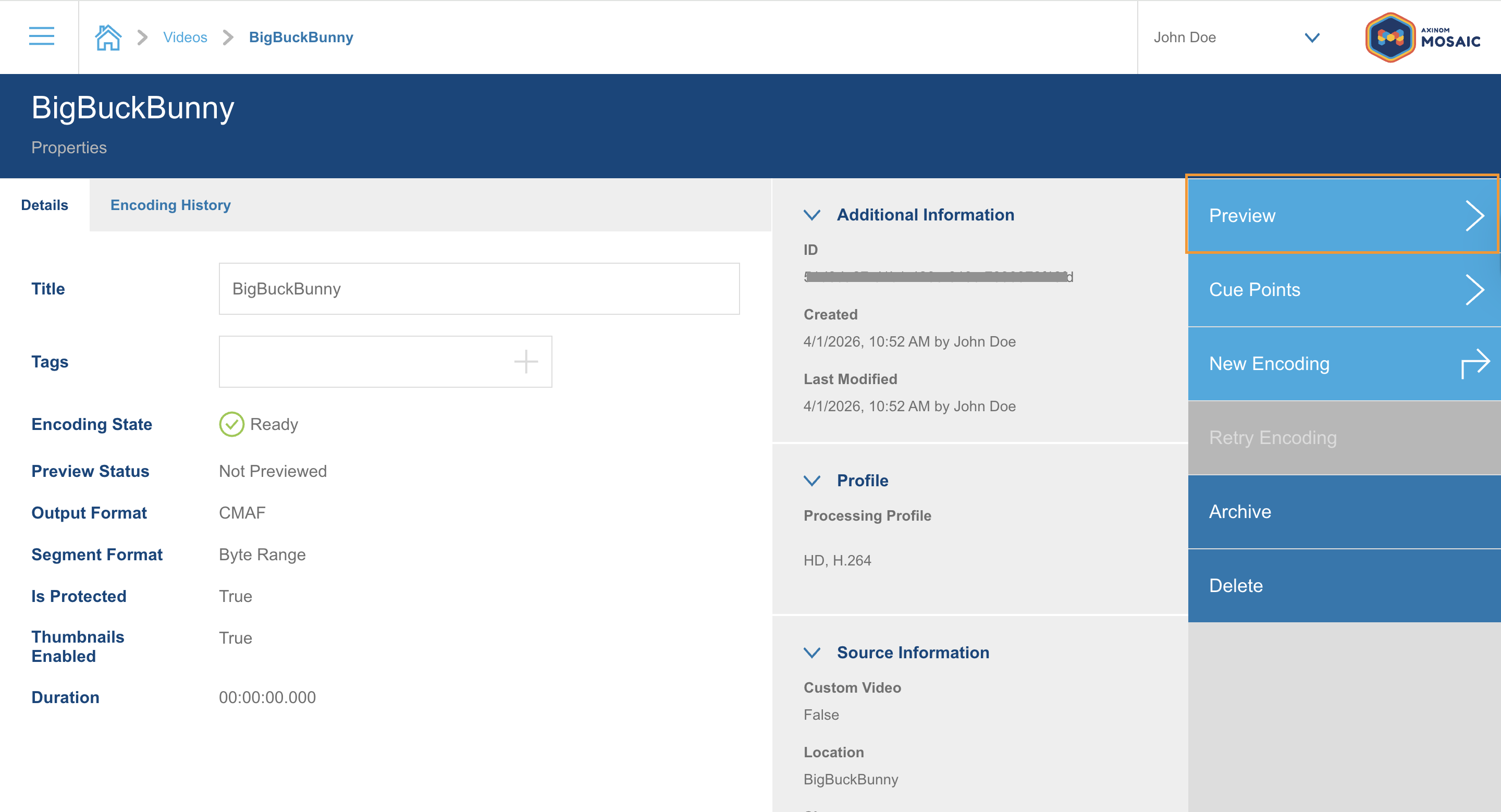
Encoding time depends on the length of the source video. You can monitor progress directly in the interface. Once the job completes, the video status will update accordingly.
Preview the Result
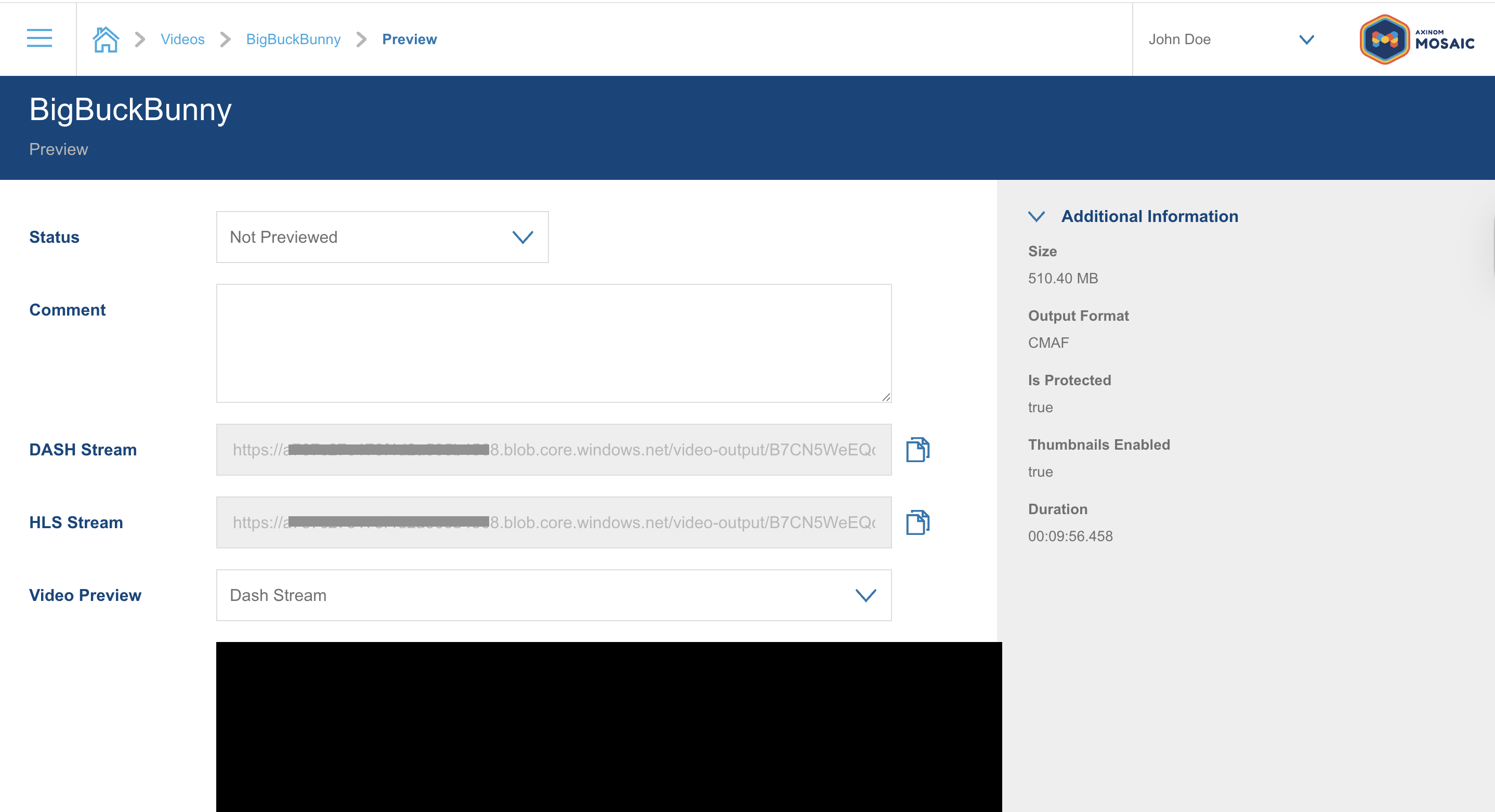
Once encoding is finished, navigate to the Preview tab on your video. Click play icon to verify that the encoded video streams correctly.
You have successfully completed the quick start guide - congratulations!
What's next?
Now that you've validated the basic encoding flow, here are some natural next steps:
- To learn more of Axinom Encoding explore our documentation
- Use your own source video — upload your own content to your input storage using Azure Storage Explorer or directly via Axinom Portal under My Mosaic / Encoding → Upload a Source Video. You can find further details from this video.
- Use your own storage — if you want to use your own Azure Storage Account or AWS S3 Bucket instead of the pre-provisioned one, set up your Acquisition and Publishing profiles. See Set up Encoding Profiles. When providing storage credentials, use the Credentials Protection Tool to encrypt them before entry.
- Explore processing profiles — learn what settings are available and how they affect output quality and file size. See Set up Encoding Profiles
- Try the API — automate your encoding workflows programmatically. See Encode a Video using API.
- Try out our tools and should you have any further questions contact our support.